📦 What this guide covers
This page walks you through the initial setup of Eudemons, CrazyTao, and Zero Online private servers on a Windows VPS.
✅ Requirements (recommended)
- Windows VPS (Windows Server 2008 R2 / 2012+), Administrator access.
- Drive
C:\with at least 10 GB free space.
📥 Downloads
Client Downloads
🗂️ Step 1 — Extract the server file
- Download the Triple Server Pack RAR to your VPS.
- Right-click the archive → Extract Here (or extract to
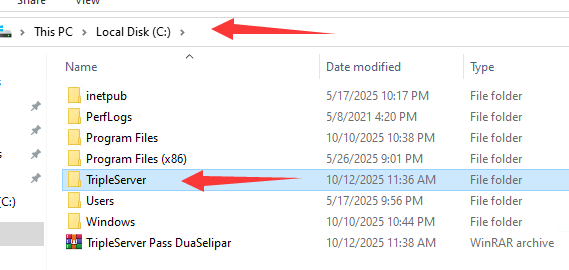
C:\directly).Expected path after extraction:
C:\TripleServer\ ├─ Database\ ├─ 1.TaoClassic ├─ 2.JinClassic └─ 3.ZeroClassic - Confirm the folder structure matches the pack (no double-nested folders like
C:\TripleServer\TripleServer\...).
🗄️ Step 2 — Starting database service
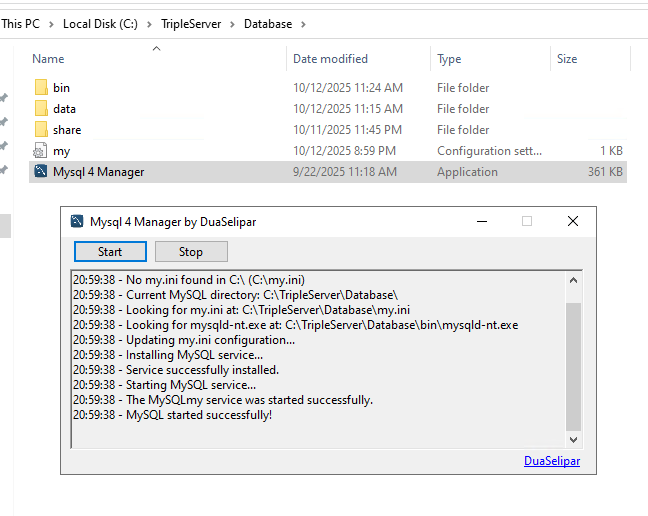
- Go to
C:\TripleServer\Database\. - Launch
MySQL 4 ManagerfromC:\TripleServer\Database\. - Press
Startto start the mysql service
🚀 Step 3 — Configure the server with Easy Setup
Each server folder (1.TaoClassic, 2.JinClassic, 3.ZeroClassic)
includes an Easy Setup tool to quickly prepare your configuration.
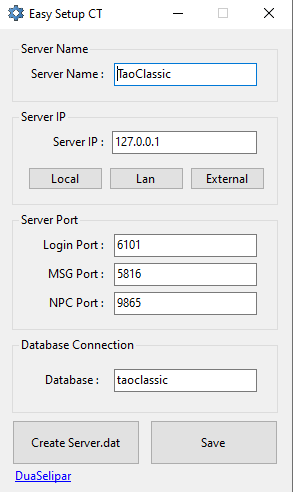
- Open Easy Setup from the server you want to run (e.g.
C:\TripleServer\1.TaoClassic\EasySetup.exe). - Server Name: Enter the display name you want (e.g.
TaoClassic). - Server IP:
- Local — sets
127.0.0.1. Only this machine/VPS can connect (solo testing). - LAN — sets your private address (e.g.
192.168.x.x). Devices on the same router/network can join. - External — sets your public IP or DNS (for Internet play or VPS). Ensure required ports are open to the world.
- Local — sets
- Server Port: Keep defaults unless needed.
- Database: Type the MySQL database name (e.g.
taoclassic). - Save: Click Save to write the configuration.
- Create client .dat: After saving, click Create Server.dat, Worlds.dat, and Oem.dat. Copy the generated files to your client folder
(usually
Client\ini\) and overwrite existing files.
Notes
- For External play on a VPS, allow inbound
Login Port,MSG Port and NPC Portin Windows Firewall. - If you change any port, re-create the
.datfiles and copy them to the client again.
🟢 Step 4 — Start the servers (Auto Maintenance Tool)
-
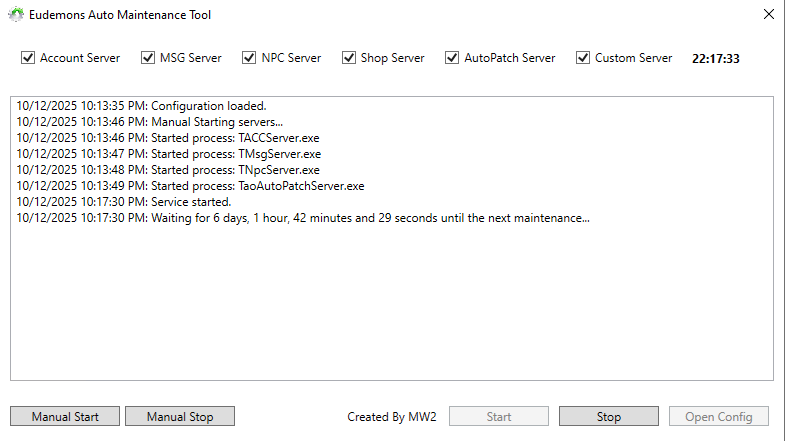
Open AutoMaintTool from the server folder you want to run
(
1.TaoClassic/2.JinClassic/3.ZeroClassic). You can create a desktop shortcut for quick access. - Click Open Config, set your preferences of maintenance times ,day and duration of the maintenance. Then click Save.
- Click Start to begin the auto-maintenance cycle. The tool will start the checked servers and keep them running.
- Or use Manual Start / Manual Stop if you just want to launch/stop the servers immediately without the cycle.
🎮 Step 5 — Happy Gaming!
- Make sure your generated
Server.dat,Worlds.dat, andOem.datare copied into the client folder (usuallyClient\ini\). - Launch the client, pick your server, and log in. Have fun!
Important Warning
Do not rename any files or folders from the server/client pack. Keeping original names ensures this tutorial works correctly.
Trick to run all three servers on one VPS
Start the CrazyTao server first, then start Eudemons and Zero. This order helps avoid conflicts and ensures a smooth startup.
Antivirus Exclusion & Restore
- Add an antivirus/Defender exclusion for your server folder (e.g.
C:\TripleServer\) to prevent.exefiles from being removed. - If an executable gets deleted, go to
GameServer\exebackup.rar, extract it back, and run the server as usual.
⬇️ Other Downloads
- Flash Player Installer — if the game window shows a blank/black screen when opening.
- .NET 8 Runtime / Desktop Runtime x64
- .NET 8 Runtime / Desktop Runtime x32